

Discover the pleasure of losing yourself in fascinating tales, useful guides, and literary masterpieces as you peruse Kindle books on your Mac. Our goal is to equip you with the skills necessary to fully explore the benefits of your digital library.
Amazon kindle eBooks is miracle for passionate readers now you don’t need to make big libraries in your office and home you just need to buy kindle books that can store on mac.
Can you picture yourself being able to read your favorite books on the device of your choice without ever having to worry about losing your place?
With our simple strategies, you can keep your reading progress going strong no matter where life takes you. This will help you carry dozens of books in your pocket at the same time. And the convenience is to open the kindle and enjoy reading the book you like the most.
Contents
Where are Kindle Books Stored on Mac
The Mac isn’t the end of your reading journey. Enjoy the freedom of reading across devices, stay in touch with the literary world even when you’re on the go, and savor the excitement of discovery with our Amazon kindle expert suggestions.
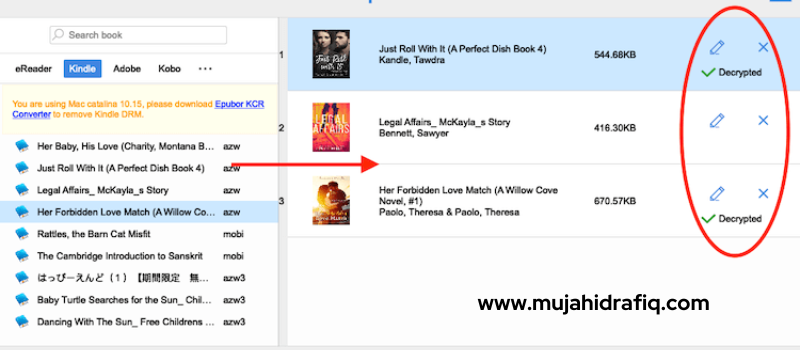
On a Mac, Kindle books are stored in the path: ~/Library/Containers/com.amazon.Kindle/Data/Library/Application Support/Kindle/My Kindle Content. This location contains subfolders with individual eBook files.
We make it our mission to meet your specific needs by pointing you in the direction of literary treasures that speak to your heart.
Along the way, we’ll sprinkle in some humor and wit to lighten the mood. Reading, after all, should be a pleasurable diversion, and we want to improve your time spent reading by adding some informal flavor.
Let us be your reliable travel partner as you experience the enchantment of Amazon Kindle books on your Mac. To experience reading like never before, check out our unique Kindle services y Amazon kindle experts.
Enjoy your reading!
Definition of Kindle books
The term “Kindle books” is used to describe electronic books. That have been produced exclusively for the Kindle reading platform and devices sold by Amazon. Amazon’s Kindle, first introduced in 2007, immediately established itself as a frontrunner in the e-reader market.
Because it was providing readers with a lightweight and portable means of accessing an extensive digital book collection.
There are a number of other file types that can be used to read Kindle books, including
- AZW
- MOBI
- KFX
All of which have been optimized for reading on Kindle devices and Kindle apps on various platforms, including Mac.
How Kindle books are accessed and read on Mac
Amazon’s Kindle software for Mac is a great way to access and read Kindle books. As it provides a straightforward interface for doing all three.
With the Kindle software for Mac, readers can sync their entire Kindle collection to all of their devices so they can easily continue reading from wherever they left off.
The Kindle software for Mac allows users to access their digital library by signing in with their Amazon account information. The app’s UI is laid out like a digital bookshelf, making it simple for users to find the titles they want to read.
If you click on a book’s cover, the book will open, and you’ll be able to
- change the text size,
- background color, and other options to make reading more and more comfortable.

Default Storage Location for Kindle Books on Mac
Identifying the default storage location
By default, Kindle books on Mac are stored in a hidden folder within the user’s Library directory. To access this folder, follow these steps:
- Open Finder on your Mac.
- Click on the “Go” menu in the menu bar at the top of the screen.
- Press and hold the “Option” key on your keyboard to reveal the “Library” option.
- Click on “Library” to access the hidden Library directory.
- Within the Library directory, navigate to “Containers” > “com.amazon.Kindle” > “Data” > “Library” > “Application Support” > “Kindle” > “My Kindle Content.”
Accessing the Kindle books folder
All the books you’ve purchased for your Kindle can be found in the “My Kindle Content” section.
Each electronic book has its own unique identity, which is represented by a string of alphanumeric letters within the file’s name. Open the Kindle app on your Mac and use the alphanumeric identifiers to look up the titles in your digital library.
Warning: Directly altering or deleting files from this folder can create problems with your Kindle collection and is not recommended. To properly manage and organize your e-book library, use the Kindle app’s interface.
Transferring Kindle Books from Mac to Other Devices
Benefits of transferring Kindle books
There are a number of benefits to being able to move your Kindle library from your Mac to other devices. Key advantages include.
- Multi-Device Accessibility: By transferring Kindle books to other devices, such as smartphones or tablets, you can access your favorite reads anytime, anywhere, without being restricted to just your Mac.
looking interested, right? It’s not difficult to use Kindle on Mac; you just need to follow the steps and instructions discussed in this blog.
- Continuity of Reading: Transferring allows you to seamlessly switch between devices, picking up where you left off. It ensures a consistent and reliable reading experience without any obstructions.
- Offline Reading: Once transferred to a mobile device, you can read Kindle books even without an internet connection, making it perfect for travel or areas with limited connectivity.
- Preserving Device Storage: Moving books to other devices frees up space on your Mac, especially if you have a large collection of e-books.
Methods to transfer Kindle books to other devices
There are different methods to transfer Kindle books from your Mac to other devices, depending on the devices you want to transfer to. Here are some common methods:
- Syncing with your Amazon Account: Using the Kindle app’s “Sync” feature, you may have all of your books synced to any other devices that are linked to your Amazon account.
- Send-to-Kindle: Using your Amazon account and the “Send-to-Kindle” option, you can email Kindle books to any of your linked devices. Sending the book to your Kindle’s email address will automatically add it to your Kindle library.
- USB Transfer: Connecting your Kindle device to your Mac by USB and dragging and dropping the e-book files into the proper folder is a manual way to move Kindle books between machines.
- Cloud-Based Services: Your Kindle books can be uploaded to the cloud and accessed from any device with the Kindle app installed if your other devices are compatible with cloud storage services like Amazon Cloud Drive, Google Drive, or Dropbox.
Make sure that the Amazon account used to buy or download the Kindle books on your Mac is the same account used on the devices you intend to move the books to.
Backup and Restore Kindle Books on Mac
Importance of backing up Kindle books
Backing up your Kindle books on your Mac is crucial to safeguarding your digital library from potential data loss. Several reasons highlight the importance of regular backups:
- Device Failure: A backup protects your treasured e-book collection from being lost in the case of a hardware breakdown or a malfunctioning Mac.
- Accidental Deletion: If you accidentally delete a book from your Kindle library, having a backup copy allows you to restore it easily.
- Peace of Mind: If you back up your books regularly, you may relax while browsing and managing your digital collection.
How to back up Kindle books on Mac
Backing up your Kindle books on a Mac is a straightforward process. Here’s how to do it:
- Locate Kindle Book Folder: As mentioned earlier, find the “My Kindle Content” folder on your Mac (Library > Containers > com.amazon.Kindle > Data > Library > Application Support > Kindle > My Kindle Content).
- Copy to External Storage: To back up your Kindle library to a USB drive or external hard drive, just copy the full “My Kindle Content” folder.
- Cloud Backup: The “My Kindle Content” folder can also be uploaded to a cloud storage service to make your books more secure and accessible from any device.
Remember to perform regular backups to keep your Kindle books up-to-date and safe.
Restoring Kindle books from backup
Restoring Kindle books from a backup is a simple process, and it comes in handy if you encounter any issues with your current Kindle library. To restore from a backup:
- Locate Backup: Connect the external storage device containing your Kindle book backup or access the cloud storage where the backup is stored.
- Copy Back to Mac: Copy the “My Kindle Content” folder from the external storage or cloud storage back to the original location on your Mac (Library > Containers > com.amazon.Kindle > Data > Library > Application Support > Kindle).
- Sync the Kindle App: Open the Kindle app on your Mac and sync the library to ensure all your restored books are visible and up-to-date.
By following these steps, you can successfully backup and restore your Kindle books, keeping your digital library secure and accessible at all times.
Troubleshooting Kindle Book Storage Issues on Mac

Common problems with Kindle book storage
While managing Kindle books on your Mac, you might encounter some storage-related issues. Common problems include:
- Missing Books: Kindle books disappear from the library due to accidental deletions or software glitches.
- Storage Full: Running out of storage space on your Mac leads to difficulties in downloading new Kindle books.
- Syncing Issues: Books are not syncing correctly across devices, causing inconsistencies in reading progress and book availability.
To address storage-related issues with your Kindle books on Mac, consider the following solutions:
- Check Cloud Sync: Ensure that your Kindle app is correctly set to sync with your Amazon account and that the books you are missing are not available in the cloud.
- Reclaim Disc Space: Remove unnecessary files and applications from your Mac to free up storage space and make room for your Kindle books.
- Clear Cache: Clear the cache of your Kindle app to resolve syncing issues and optimize the app’s performance.
- Check Device Limits: Verify that you haven’t exceeded the device limits for Kindle books on your Amazon account, as this might cause issues with syncing and downloading books.
- Update Kindle App: Keep your Kindle app up-to-date to ensure compatibility with the latest macOS version and avoid potential bugs.
If the above solutions don’t resolve the issues, consider reaching out to Amazon support for further assistance.
By being aware of
- how to transfer
- backup
- restore
- troubleshoot
Kindle book storage on your Mac, you can optimize your reading experience and ensure your e-book collection remains safe and accessible at all times.
Conclusion
Any respectable online retailer would know precisely where on your Mac your Kindle books are stored. In order to give you the best possible digital reading experience. By putting a vast library in the palm of your hand, Kindle books have altered the way we read, and knowing where they are stored is essential for managing this valuable collection.
Throughout this entire blog, we have emphasized the critical nature of knowing where your Kindle books are stored on your Mac, and we have offered comprehensive instructions for locating the default storage location, changing it if required, and transferring books with ease. We also discussed how easy it is to recover your Kindle collection from a backup in the event that you lose all of your books.
Are you prepared to go on a journey that will never end? Today is the day to delve into the depths of our Amazon Kindle expert services and discover the wealth of e-books waiting for you.
To learn more about our Amazon Kindle expert services and how they may take your reading to new heights.
FAQ’s
Q1: Where are my Amazon Kindle books stored?
Certainly! Amazon stores all of your Kindle books in the cloud, so you can read them on any of your devices as long as you have an internet connection. With cloud storage, you can keep all of your books in one convenient location and read them anywhere, anytime.
Q2: How do I extract books from Kindle app on Mac?
Certainly! Select the book you want to download from the Kindle app, and then click the “Download” button. The book will be downloaded to your Mac and made available for offline reading.
Q3: Why is my Kindle book not showing in my Library?
Absolutely! A simple solution to the problem of a missing Kindle book from your Library is to sync your device or app. By doing so, you’ll update the material and reconnect to the internet, restoring the lost book to your Library so you may read it as usual.
Q4: Where are my Kindle books stored on my Mac?
Exactly! The “Documents” folder within the Kindle application on your Mac is where Kindle books are kept. The app’s settings are where you’ll look for this folder, making it simple to get to any books you’ve downloaded.
Read More:
Unlocking The Secrets Of Amazon Kindle Direct Publishing
Kindle Expert Guide Can I Charge A Kindle With A Phone Charger?
Join Us in Providing Top-Notch Kindle Services Today. Click here